


Introudction
In today’s fast-moving world, managing the lifecycle of your organization’s email is essential for both compliance and information governance. Microsoft Purview’s Data Lifecycle Management offers a unified experience to create retention policies across workloads—including Exchange Online—so you can retain or delete content automatically.
In this post, we’ll explore Purview retention policies and walk through a step-by-step example to create a 1-Day Delete policy scoped to a single test user.
Note: The 1-day retention period in this example is purely illustrative to show how retention policies work.
What Are Microsoft Purview Retention Policies?
Microsoft Purview retention policies enable you to:
- Define retention rules for Exchange mail, SharePoint, Teams chats, and mor
- Choose Static (fixed-time) or Adaptive (metadata-driven) rules
- Scope policies to specific users, groups, or dynamic distributions
- Automate retain, delete, or retain-then-delete actions centrally
Why Use Purview for Email Retention?
- Centralized management across Exchange Online and all Microsoft365 workloads
- Automated enforcement—no manual cleanup or scripts required
- Flexible scoping—target a single mailbox or your entire tenant
Quick Example: Creating a 1-Day Delete Policy for Exchange
Below is a modern, portal-based example no legacy MRM steps showing how to delete emails one day after they arrive, for just one test user.
⚠️ Warning: Be cautious when using a retention policy, especially when selecting a single user. If you remove this test user and save the policy, it will apply to all mailboxes, leading to permanent email loss within 24 hours with no recovery option. Microsoft is working on a banner that will alert users when modifying a selected mailbox to prevent unintended policy propagation.
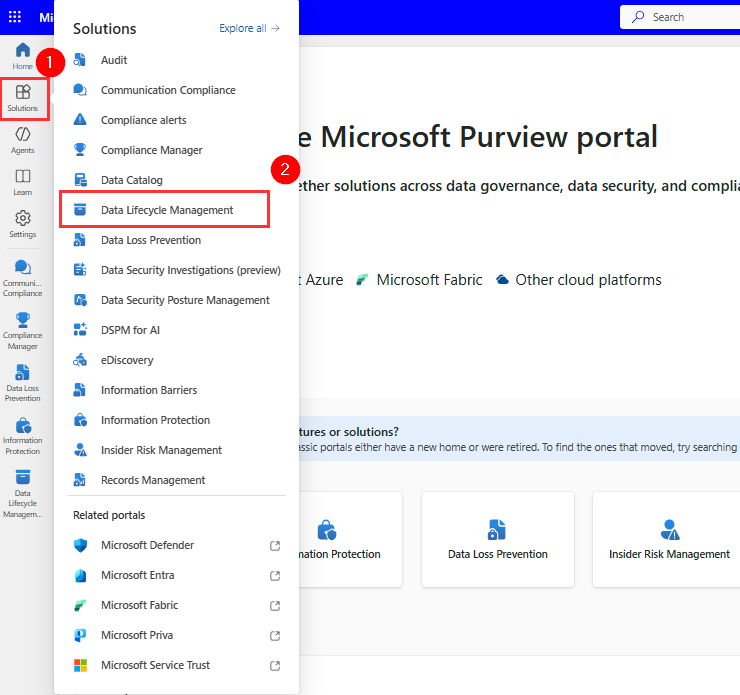
Step 1: Open the Microsoft Purview portal
- Go to Microsoft Purview and sign in.
- In the left pane, expand Solutions > Data lifecycle management.
Step 2: Create a New Policy
- Select Policies > Retention policies
- Click + New policy.

- Name it EXO_Email_1D_Delete
- (Optional) Add a description: “Automatically deletes emails after 1 day”

Choose Policy Static

Step 4: Scope the Policy
- In Applied to, click Choose users, groups, or sites.
- Select the mailboxes you want to include (start with a test account).
- Click Apply.

Step 3: Configure Retention Settings
- In Retention Settings, choose Retain items for a specific period, select Custom, then 1 Day.
- Under At the end of reteion period seclect Delete items automatically.
Note: The difference between retention policies based on item creation and item modification lies in how the retention period is calculated:
- Item Created: The retention period starts from the date the item was originally created. This is commonly used for emails in Exchange Online, where messages are only created and never modified.
- Item Modified: The retention period resets each time the item is modified. This applies more to SharePoint and OneDrive documents, where files are frequently updated.
Emails in Exchange Online are only created, not modified. Unlike SharePoint or OneDrive documents, which can be edited multiple times, emails remain static once they are sent or received.


Step 5: Review and Save
- Verify your settings:
- Name: 1-Day Delete Policy
- Retention: 1 day
- Scope: Selected mailboxes
- Click Save.
Step 6: Allow Policy to Propagate
Retention policies can take up to 24 hours to begin enforcing. After propagation, any email over one day old in the targeted mailboxes will be processed.
Example: Testing Your 1-Day Delete Policy
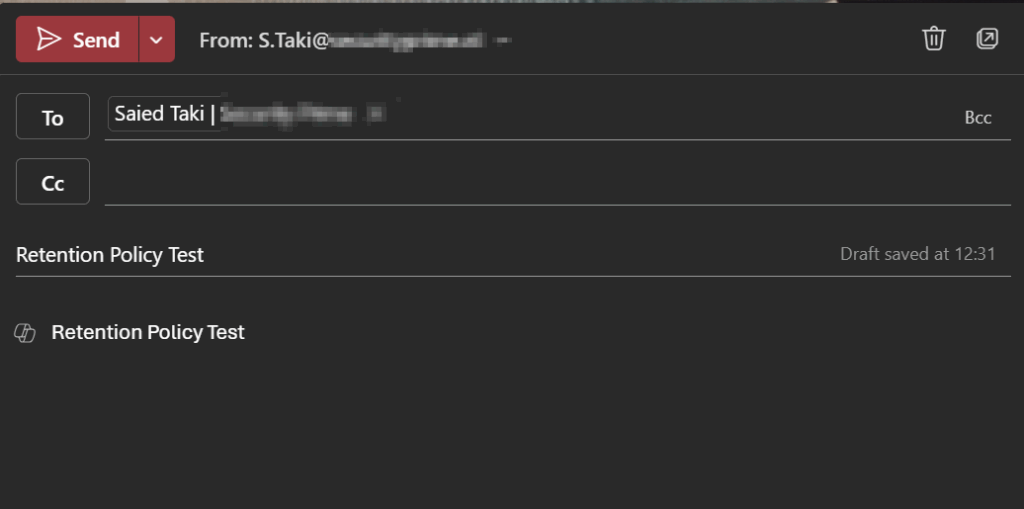
- Send a test email to a mailbox under the new policy.
- Wait 24 hours.
- Open Recoverable Items in that mailbox—your test message should appear, confirming the policy works.


Wrapping Up
With just a few clicks in the Microsoft Purview portal, you can enforce a 1-day email retention rule—perfect for scenarios requiring rapid data purge. You can adjust the retention period, action, or scope anytime by modifying the policy under Purview Data Lifecycle Management > Retention Policies.
By leveraging Purview retention policies, you reduce manual overhead, stay aligned with internal or regulatory mandates, and keep your organization’s email lifecycle under control with centralized automation.
Resource: Automatically retain or delete content by using retention policies | Microsoft Learn
Discover more from Blogs | Saied Taki
Subscribe to get the latest posts sent to your email.