

Office 365 is a powerful productivity suite that offers numerous tools and applications to organizations for their daily tasks. However, with the rise of cyber threats and data breaches, it has become increasingly important to secure Office 365 and monitor user activity to prevent potential risks.
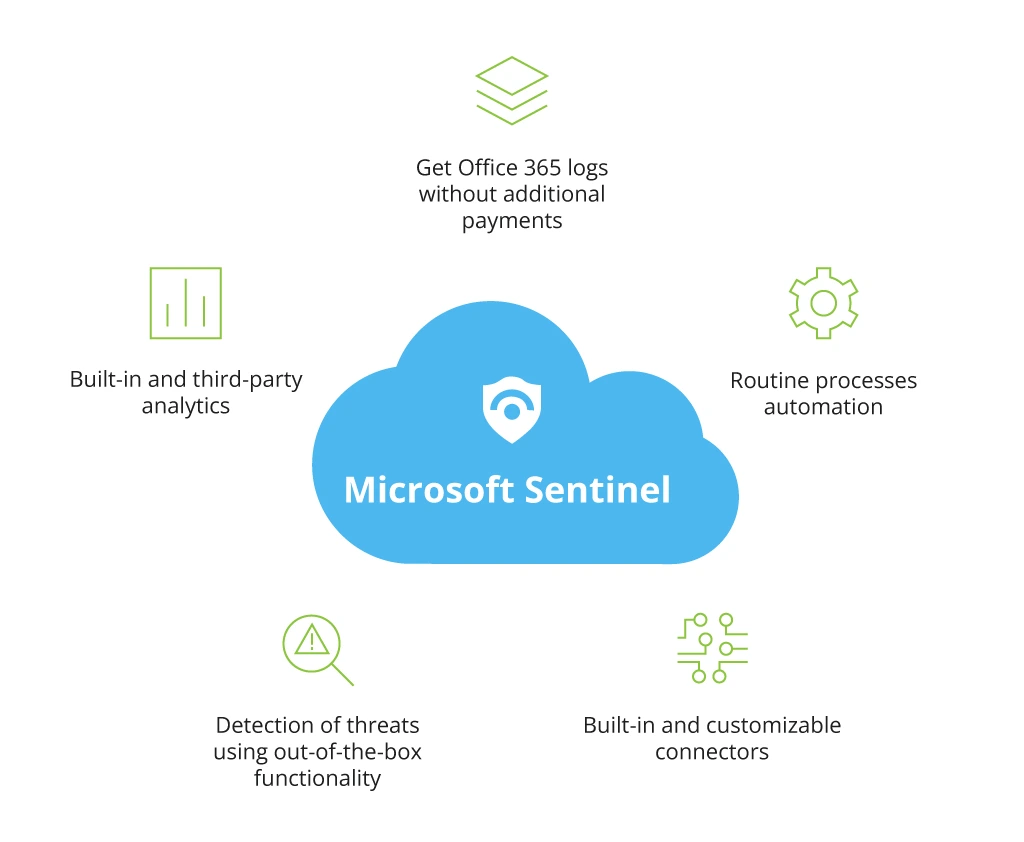
Microsoft Sentinel is a cloud-native security information event management (SIEM) and security orchestration automated response (SOAR) solution that can be used to monitor and respond to security threats in real-time. In this blog post, we will explore how to configure Office 365 in Sentinel and what you can do with Office activity.
To configure Office 365 in Sentinel, you need to follow these steps:
Step 1: Create an Office 365 Data Connector
First, you need to create an Office 365 data connector in Azure Sentinel. To do this, navigate to the Azure Sentinel portal, click on “Data connectors” under “Configuration”, and select “Office 365”.
Step 2: Connect to Office 365
Next, you need to connect your Office 365 account to Azure Sentinel. To do this, you will be prompted to provide your Office 365 credentials and authorize Azure Sentinel to access your Office 365 data.
Step 3: Select Office 365 Logs
After connecting to Office 365, you need to select which logs you want to send to Azure Sentinel. You can choose from a variety of Office 365 logs, including audit logs, mailbox audit logs, and message trace logs.
Step 4: Review and Save
Finally, review your settings and save the Office 365 data connector. Once saved, Azure Sentinel will begin collecting Office 365 logs and analyzing them for security threats.
What You Can Do With Office Activity in Sentinel
Once you have configured Office 365 in Sentinel, you can use the platform to monitor and respond to Office activity in real-time. Here are some examples of what you can do with Office activity:
- Detect Suspicious Activity
Azure Sentinel can analyze Office 365 logs to detect suspicious activity, such as failed logins, logins from unfamiliar locations, or unusual file access patterns. You can set up alerts in Sentinel to notify you when such activity occurs, allowing you to respond quickly and prevent potential security threats.
- Investigate Incidents
If a security incident occurs, you can use Azure Sentinel to investigate the incident and determine the scope and impact of the attack. Sentinel allows you to visualize Office activity in real-time, providing you with valuable insights into the incident.
- Take Automated Actions
Azure Sentinel can also take automated actions in response to security threats. For example, if Sentinel detects suspicious activity in Office 365, it can automatically block the user or quarantine the file, preventing further damage.
Conclusion
Configuring Office 365 in Azure Sentinel can provide organizations with valuable insights into their Office activity and allow them to detect and respond to security threats in real-time. By following the steps outlined in this post, you can quickly and easily set up Office 365 in Sentinel and start monitoring your Office activity for potential risks.
Discover more from Blogs | Saied Taki
Subscribe to get the latest posts sent to your email.