


If you’re an M365 administrator who wants to set up users to receive group emails in their inbox, you’re in the right place. In this post, we’ll explore how you can achieve this from an administrator’s perspective. By following the steps outlined below, you’ll be able to configure your M365 settings to ensure that all users receive group emails directly in their inbox.
Enable Groups to send email to Members
Once you create Office 365 group, you can browse to the following settings to ensure all emails are sent to the inbox as well.
- Login to M365 admin center (https://admin.microsoft.com)
- Navigate to Groups and select the group you are dealing with.
- Enable the setting that says “Send copies of group conversation and events to group members”
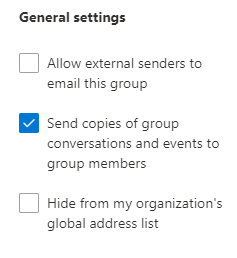
If you want all new members of the group to start receiving emails in their inbox, you’ll need to make some changes. However, if you have existing members in the group, they will not receive the emails in their inbox until they subscribe. Keep reading to learn how you can subscribe them from the backend. This post is for M365 administrators who want to configure users to receive group emails in their inbox.
Subscribe Existing Users to receive M365 Group emails
The previous setting only subscribes to the new members in the group to receive emails in the inbox. If you had members already, you’ll need to either ask them to subscribe manually or subscribe to them from the backend.
I was searching for a solution to this and came across this user voice post about this feature. In the comments, I found a script that can travel through all M365 group members and subscribe them to receive emails in the inbox, or for a specific group. Here is a copy of the script.
All credits to Justin Home on this user voice post. Running this script will subscribe existing members and they will start to receive group emails in their the inbox
# Turn on logging
$LogFile = "FixOffice365GroupSubscriptions-$(Get-Date -Format yyyymmdd-HH-mm-ss)"

Start-Transcript -Path $PSScriptRoot\$LogFile.log -NoClobber

# Get list of all Office 365 Groups
$groups = Get-UnifiedGroup

# Uncomment this to test on one group
#$groups = Get-UnifiedGroup -Identity "Group_Name_or_Email_Address"

foreach ($group in $groups) {

Try {
# Get list of all members
$members = Get-UnifiedGroupLinks -Identity $group.Name -LinkType Members
Write-Host "Members of ""$($group.DisplayName)"":" -ForegroundColor Green
Write-Host ($members | Format-Table | Out-String)

# Get list of all subscribers
$subscribers = Get-UnifiedGroupLinks -Identity $group.Name -LinkType Subscribers
Write-Host "Subscribers of ""$($group.DisplayName)"":" -ForegroundColor Green
Write-Host ($subscribers | Format-Table | Out-String)

# Subscribe all members not subscribed
Write-Host "Subscribing all members not currently subscribed..."
foreach ($member in $members) {
If ($member.Name -notin $subscribers.Name) {
Write-Host "Adding $($member.Name)."
Add-UnifiedGroupLinks -Identity $group.Name -LinkType Subscribers -Links $member.Name
} else {
Write-Host "$($member.Name) is already subscribed."
}
}

# Done!
Write-Host "Done!" -ForegroundColor Green
} Catch {
Write-Host "There was an error subscribing all users in ""$($group.DisplayName)""." -ForegroundColor Red
Write-Host $($Error[0].Exception) -ForegroundColor Red
Continue
}
}

# End logging
Discover more from Blogs | Saied Taki
Subscribe to get the latest posts sent to your email.